Export Documents by Voice: Say the Order, Get the Invoice
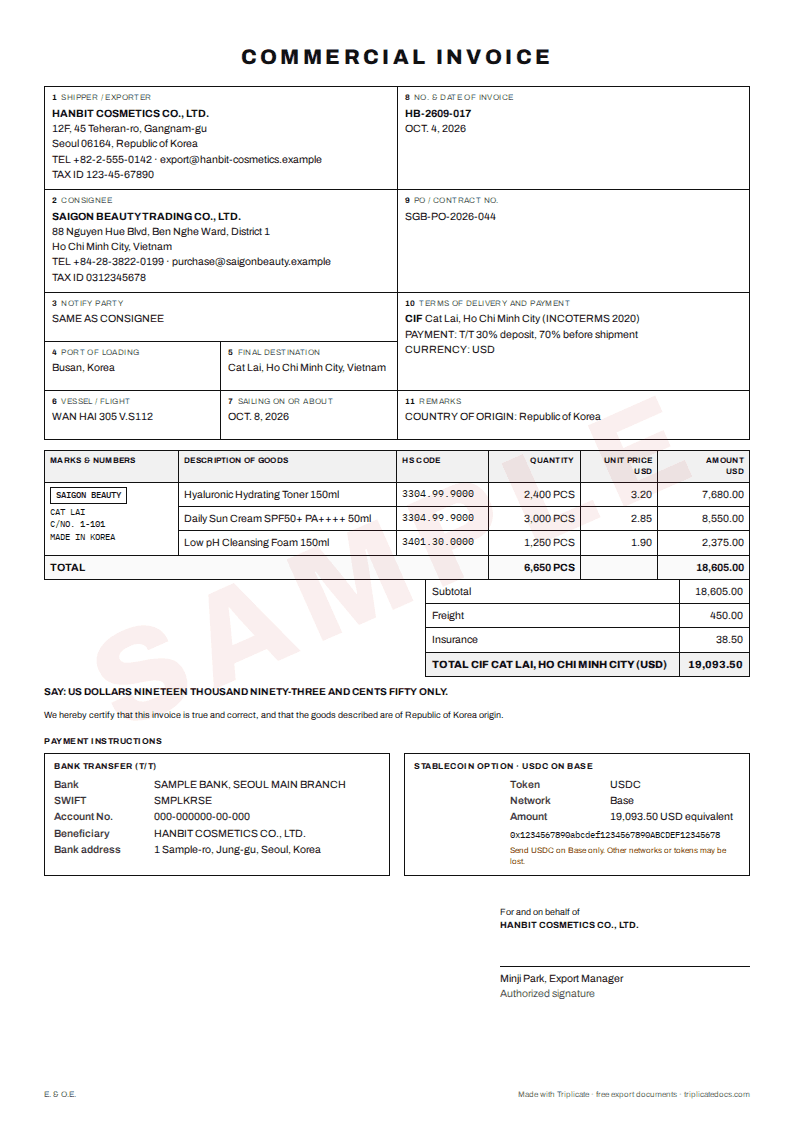
In Triplicate you can say an order instead of typing it. Tap the microphone beside the order box, say for example "2,400 ceramic mugs at USD 1.85, FOB Busan, to Nordic Home AB in Malmo, Sweden", pause, and the proforma invoice, commercial invoice and packing list fill in from the same lines. Your browser turns the speech into text; Triplicate's order assistant reads the text and fills in the form. Check every field before you send the documents: speech recognition can mishear names and numbers.
Checked against official sources: 2026-10
At a glance
Say your order in the generator →
How it works
The order box sits at the top of the generator, with a "Say your order" button (a microphone) next to "Make the documents". Tap it and allow the microphone if the browser asks. While you speak, the words appear in the box. After a pause of about two seconds, or when you tap the microphone again, the text is sent as if you had typed it, and the documents fill in.
You can then say or type the next line to add or change something: "The buyer is Nordic Home AB, Malmo, Sweden", "make it 3,000 mugs", "payment T/T 30 days". Your own company details stay as they are, and Undo goes back one step.
The same microphone is in the order box at the end of every tool, template and guide page on the site (it opens the generator with the documents filled in) and in the AI assistant's shipment mode, which answers with the documents and the checks for the destination.
What to say so the documents fill in correctly
Say what an invoice needs, in one go. For goods entering the United States, for example, the invoice rules list the parties, a detailed description of the goods, the quantities, the purchase price of each item, the currency and the country of origin (19 CFR 141.86). Other countries ask for much the same.
- The product in plain words: what it is and what it is made of ("ceramic mugs", not a model code alone)
- The quantity and its unit ("2,400 pieces", "120 cartons")
- The unit price with the currency ("USD 1.85 each")
- The Incoterms rule with the named place ("FOB Busan", "CIF Rotterdam")
- The buyer's company, city and country
- If you know them: payment terms, cartons and weights, the port of loading
Names, numbers and checking
Speech recognition usually writes numbers as digits and is good with common words, but it can mishear company names, similar-sounding numbers (fifteen and fifty) and product codes. Say prices the way you normally would; the assistant reads the amount and the currency. After the documents fill in, read the buyer's name, the quantities and the prices on the preview. To correct something, say or type the line again ("make it 1,500") or edit the field.
Product descriptions and ports come back in English on the documents, whichever language you speak.
Privacy: what goes where
The speech is turned into text by the browser's own speech recognition, not by Triplicate. In some browsers, such as Chrome, the audio is sent to the browser maker's web service for this; Safari uses Apple's speech recognition. Triplicate receives only the text, as when you type, and sends it to its order assistant (Cloudflare Workers AI) to fill in the form. The text is not stored, and the documents are made and saved in your browser.
When the microphone is missing or does not work
The microphone appears only where the browser has speech recognition: Chrome, Edge, Safari and Samsung Internet. Firefox has none, and browsers inside apps (a link opened in a messenger, for example) usually have none; open the page in the phone's browser instead. If the browser says the microphone is blocked, allow it for triplicatedocs.com in the browser's site settings. If nothing was heard for eight seconds, listening stops; tap the microphone and speak again.
Step by step
- Open the generator in Chrome, Edge, Safari or Samsung Internet.
- Tap "Say your order" (the microphone) and allow the microphone if the browser asks.
- Say the order in one go: product, quantity, unit price and currency, Incoterms rule and place, buyer and country.
- Pause for about two seconds, or tap the microphone again. The text is sent and the proforma, invoice and packing list fill in.
- Say or type the next line to add or change something, for example the buyer, a quantity or the payment terms.
- Check the parties, descriptions, quantities and prices on each document, then save the PDF.
Documents you usually need
- Proforma invoice
- Commercial invoice
- Packing list
- The generator's other documents from the same lines, by tab
Common problems and how to avoid them
What to do: Type the name in the box, or say "the buyer is" and the name again. Saved buyers (Pro) fill in the exact name and address.
What to do: Check the item lines on the preview and say "make it 1,500", or correct the field.
What to do: The browser has no speech recognition (Firefox, browsers inside apps). Open the page in Chrome or Safari, or type the order.
What to do: Allow the microphone for triplicatedocs.com in the browser's site settings, then tap the microphone again.
What to do: Typing the order stays free. Triplicate Pro has voice orders without limit.
Sources
- SpeechRecognition (Web Speech API) MDN Web Docs
- Bug 239816: Web Speech API in WKWebView WebKit Bugzilla
- Use your camera and microphone in Chrome Google Chrome Help
- 19 CFR 141.86: Contents of invoices and general requirements eCFR
Rules change often. This note is practical guidance based on the sources above, not legal advice. Confirm current requirements with the authority, your importer or a licensed customs broker before you ship.
Weekly email: trade rule changes
One short email a week: new and changed import and export rules from official sources, plus our new guides and tools. Free, unsubscribe at any time.
Trade notes
Common questions
Is it free?
Typing the order is free, without limit. Saying it is free for 3 orders in each browser; after that, Triplicate Pro has voice orders without limit.
Which languages can I speak?
The language of the page you are on, in 15 languages: English, Spanish, Portuguese, French, Arabic, Hindi, Urdu, Bengali, Indonesian, Vietnamese, Russian, Turkish, Chinese, Japanese and Korean. The descriptions and ports on the documents come back in English.
Is my voice recorded?
Not by Triplicate. The browser's speech recognition turns the speech into text (in Chrome through the browser maker's web service), and Triplicate receives only the text, which is not stored.
Does it work on a phone?
Yes: Chrome or Samsung Internet on Android, Safari on iPhone. In a browser inside an app, open the page in the phone's browser first.
Can an AI assistant make the documents for me?
AI assistants connected to Triplicate (through its MCP server or API) can return the same documents as a link that opens here filled in. Whether you can speak to the assistant depends on the assistant.
More free tools
Triplicate is free and keeps getting better. Found it useful? Support Triplicate ♥
Prefer no ads? Pro removes all ads · $1/month